최초에 VirtualBox를 이용해 Windows 환경을 구성하려고 했으나,, iso 호환이 잘 안되고 실행이 안되는 문제가 있어 VMware Fusion으로 환경 구성함
Windows ISO 다운로드
여러 방법이 있는데, 공식 페이지에서는 최신 Windows만 구할 수 있었고, Mac M 시리즈의 경우 ARM 버전을 받아야해서 구하기 쉽지 않다
1) 공식 페이지
https://www.microsoft.com/ko-kr/software-download/windows11arm64
Windows 11 ARM64 다운로드
이 옵션은 지원되는 하드웨어에서 ISO 파일을 사용하여 ARM 가상 컴퓨터 기반 Windows 11을 만들거나, DVD/USB 플래시 드라이브 없이 ARM 기반 Windows 11을 바로 설치하려는 사용자를 위한 것입니다. 또
www.microsoft.com
내 Mac 이 M3 이기 때문에 Windows ARM 버전을 받아야함.
Windows 10을 설치하고 싶었는데, Windows ARM 10 을 구하는게 어려워 11로 설치
2) Windows Insider Preview
Windows Insider Program 가입
https://www.microsoft.com/en-us/windowsinsider/register
The Windows Insider Program
www.microsoft.com
ARM 다운로드
https://www.microsoft.com/en-us/software-download/windowsinsiderpreviewARM64
Download Windows Insider Preview ARM64
Validating your request. This may take several minutes. Do not refresh the page or select back, doing so will cancel the request.
www.microsoft.com
Canary랑 개발자 버전만 있고 베타 버전이 없다. 그리고 나는 Windows10이 필요하다
3) archive 에서 다운로드
https://archive.org/details/Windows10-21390-multi-arm-64-en-us
VMware Fusion 환경 구성
VMware Fusion 다운로드
https://www.vmware.com/products/desktop-hypervisor/workstation-and-fusion
Fusion and Workstation | VMware
VMware Workstation and VMware Fusion desktop hypervisors are the industry leaders in local virtualization. Learn how VMware’s local virtualization solutions provide an easier way to build, test and deliver any app for any device or cloud.
www.vmware.com
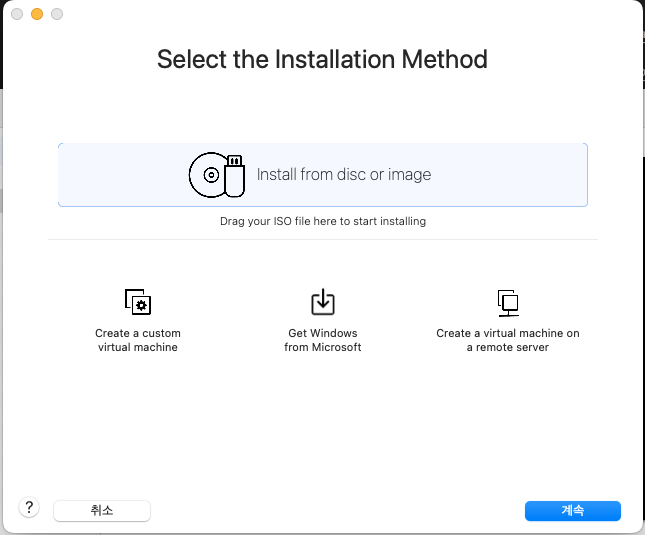
설치 파일 실행

Windows 11 ISO Drag
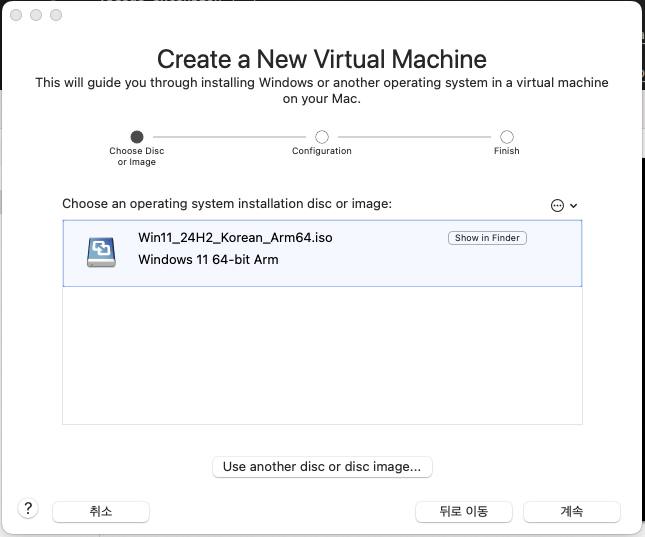
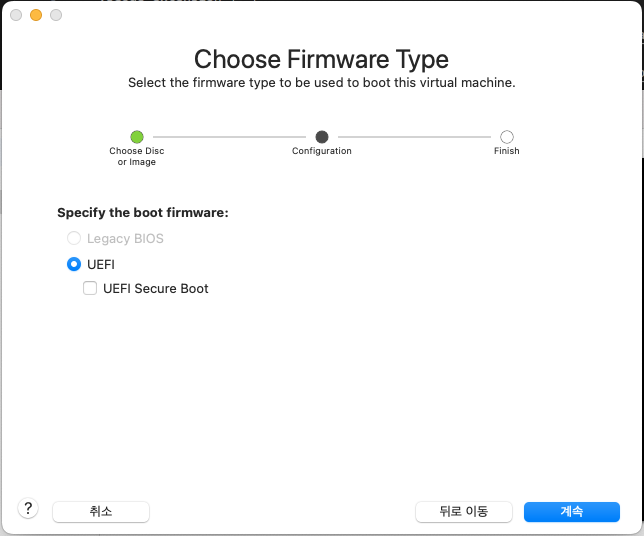
Firmware Type 설정
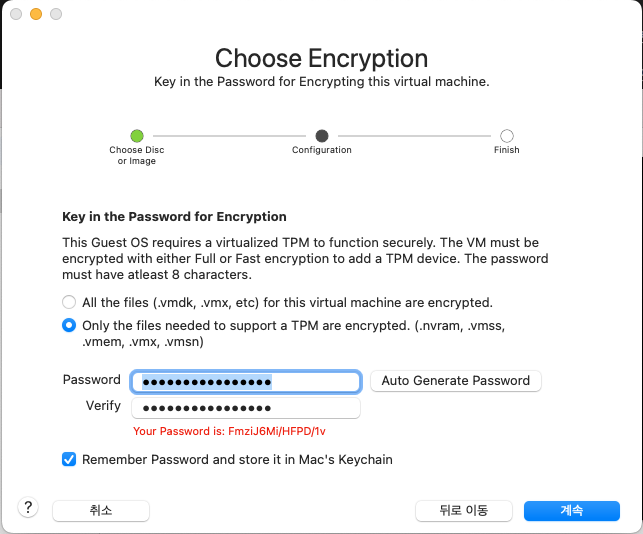
암호 설정
요약
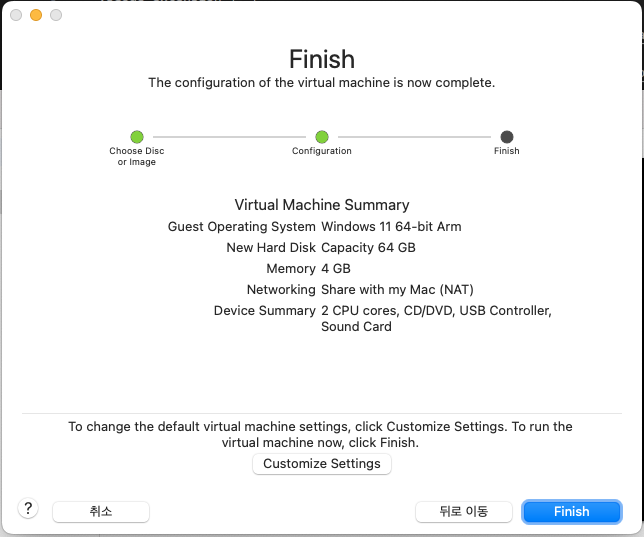
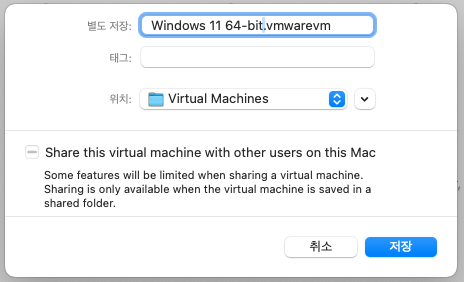
customize settings 에서 VM 이름 변경 가능
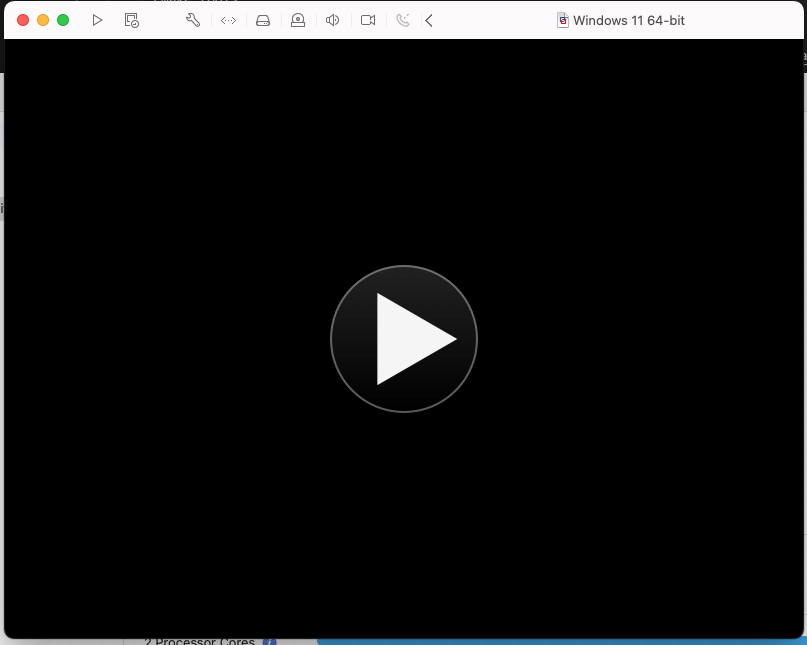
초기 화면
상단 렌치 모양 클릭 > Settings
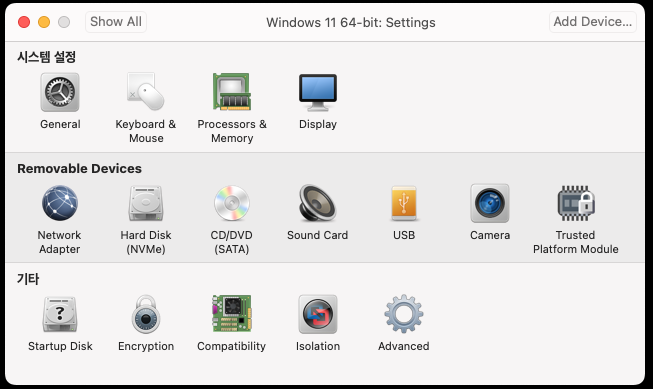
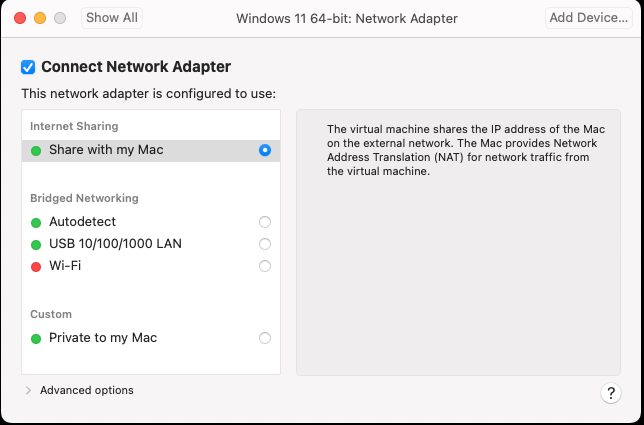
네트워크 설정: Network Adapter > Share with my Mac
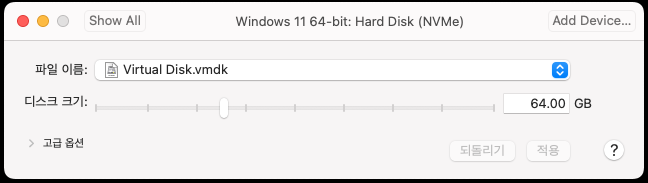
디스크 용량 설정: Hard Disk
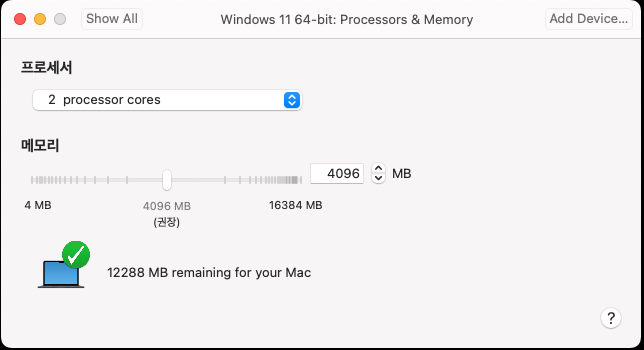
CPU, 메모리 설정 : Processors&Memory
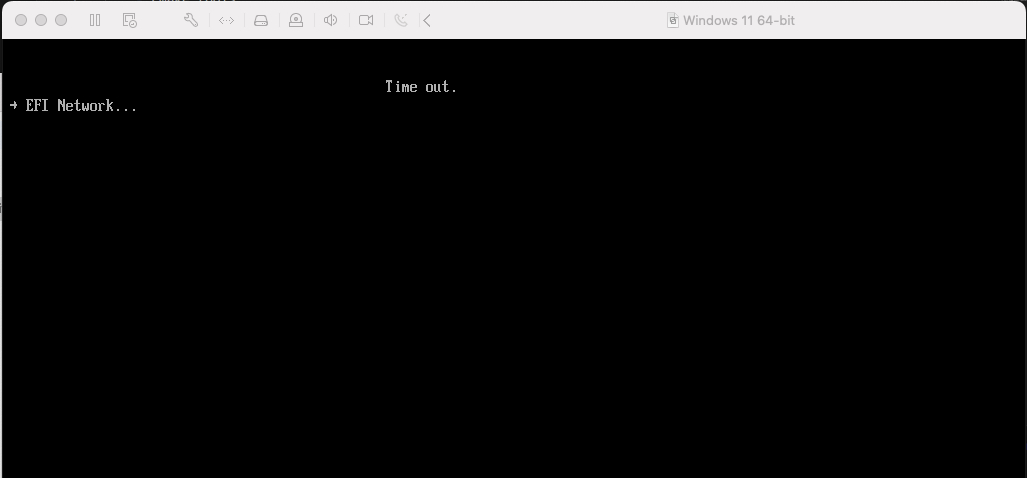
설정 완료 이후 VM 실행
Boot Manager > Boot normally
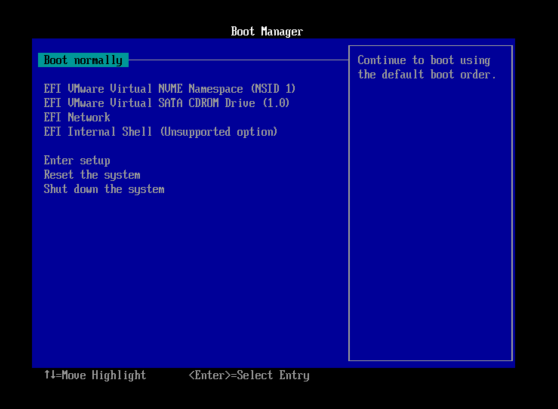
Tip, 커서 밖으로 나가기 > Control & Command
! unsuccessful 뜨는 경우, EFI VMware Virtual SATA CDROM Drive 로 선택
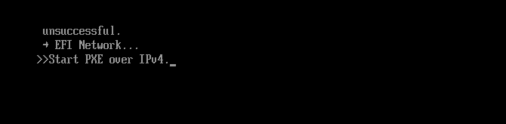
언어 설정

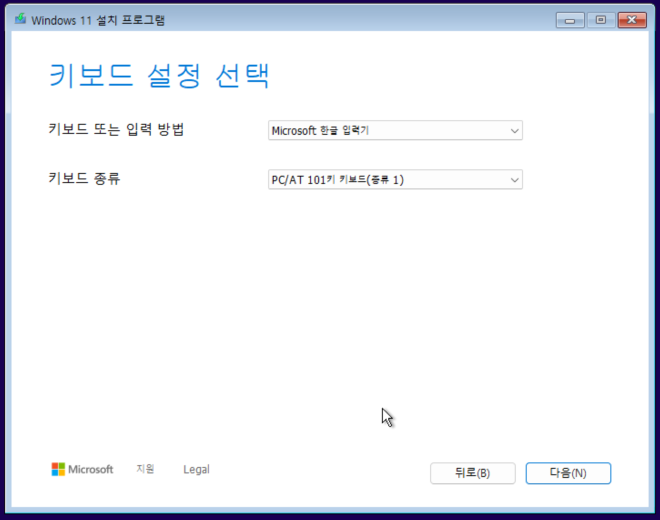
키보드 설정
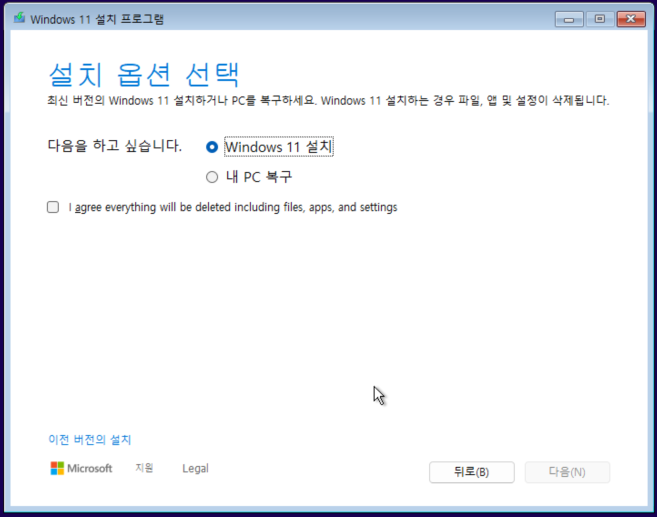
설치 옵션 선택
제품 키 > 제품 키가 없습니다.

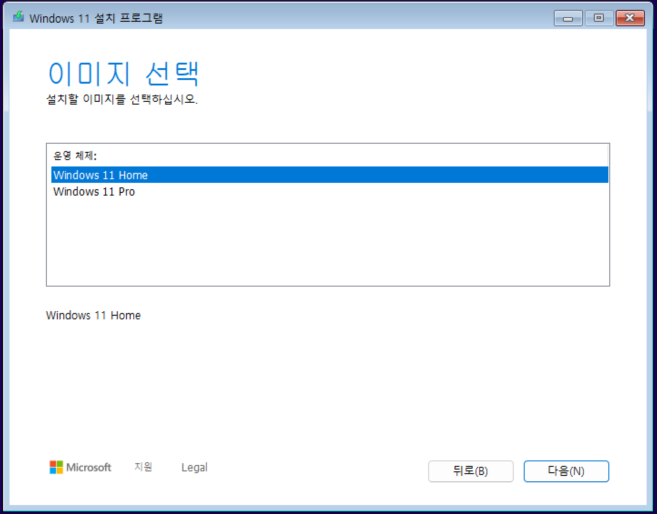
이미지 선택
동의

파티션 설정

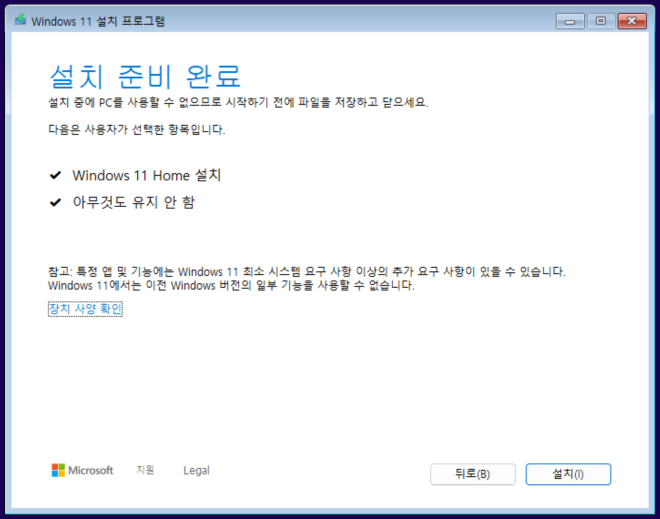
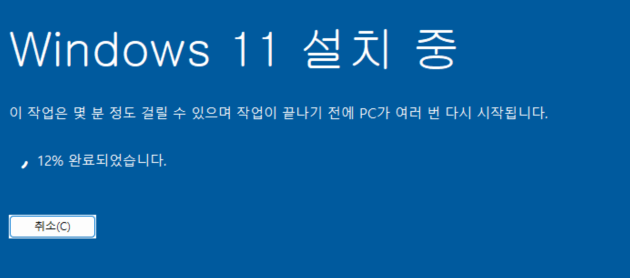
설치
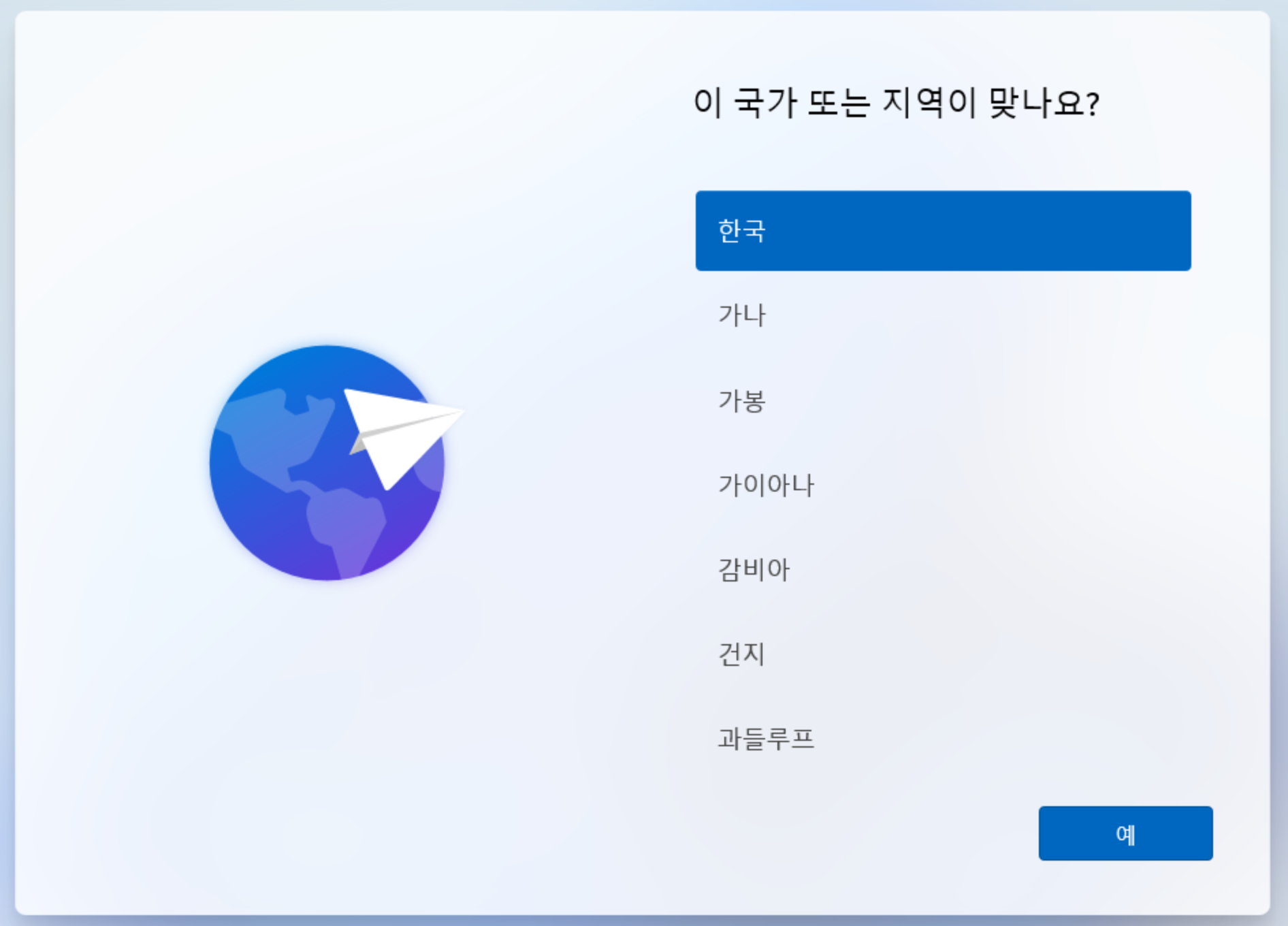
지역 선택
키보드 선택
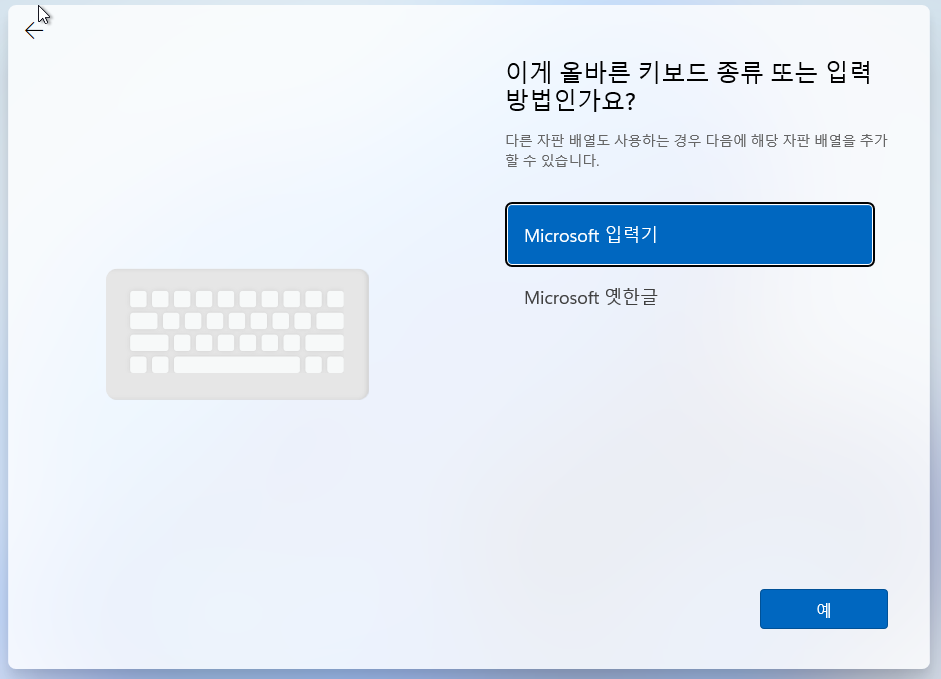
두번째 키보드 > 건너뛰기

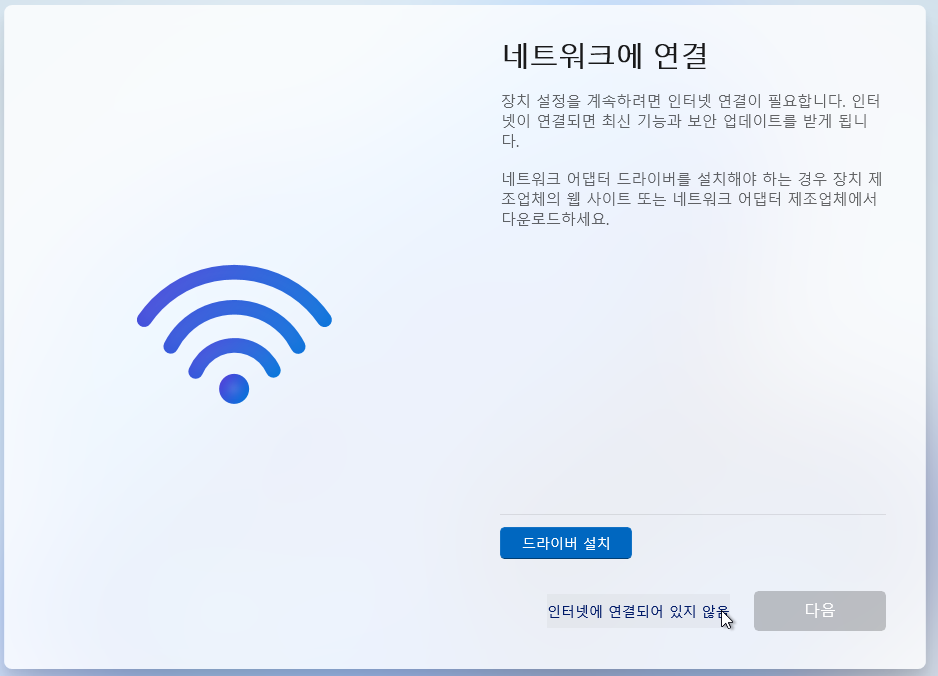
네트워크 연결

> Fn + Shift + F10 : 터미널 창 나옴

> 터미널에 OOBE\BYPASSNRO 입력
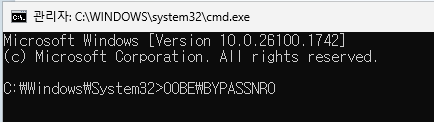
> 다시 시작됨 : 인터넷에 연결되어 있지 않음
계정 설정

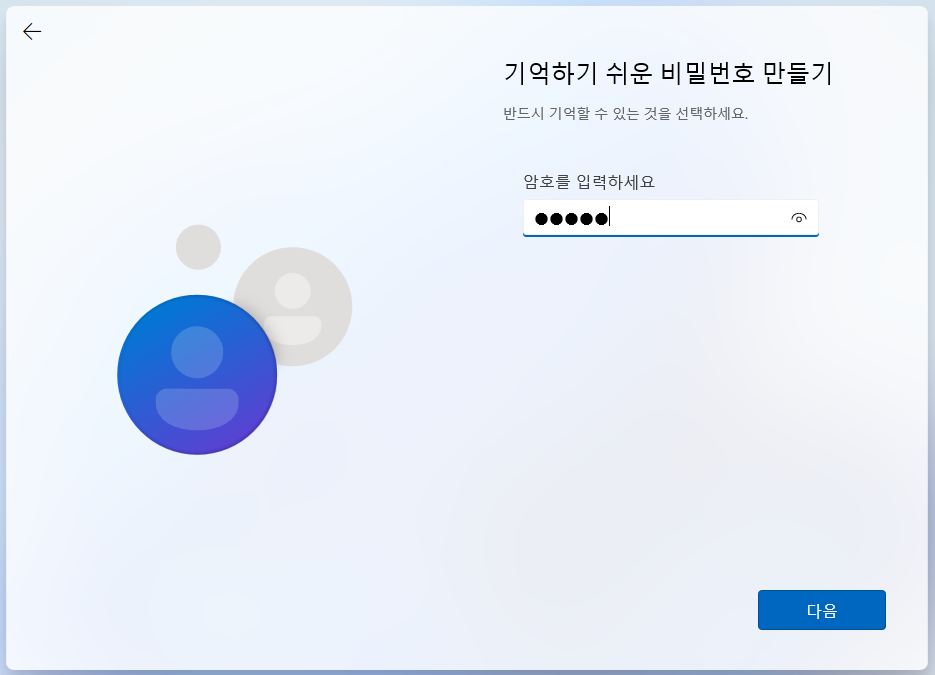
보안 질문 설정
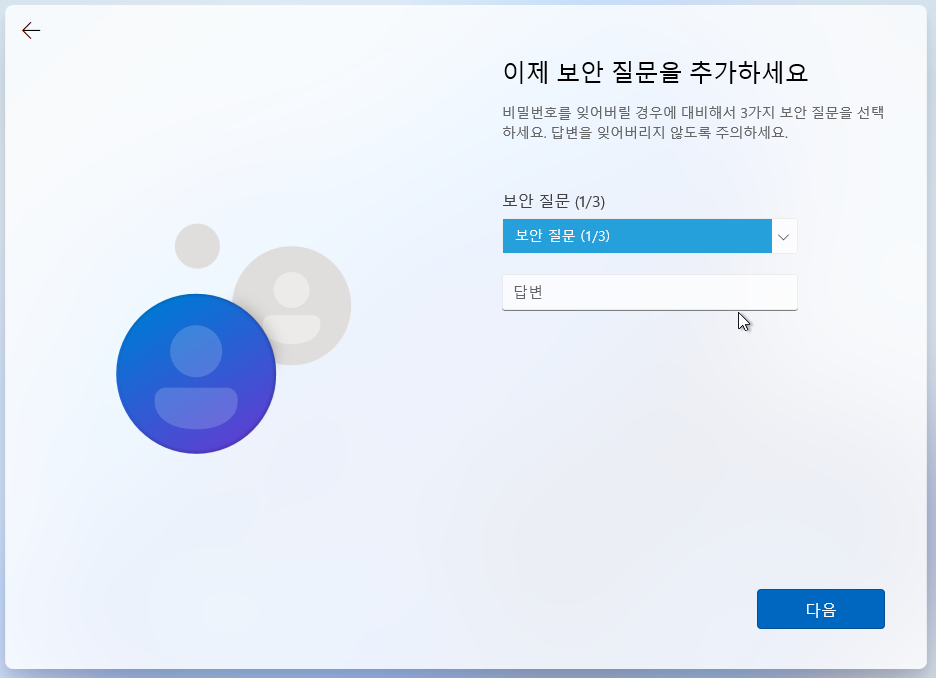
기타 설정 : 맘대로

Windows 시작

VMware Fusion 상단 > Virtual Machine > Install VMware Tools
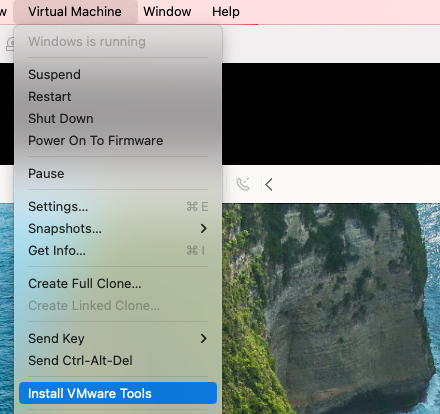
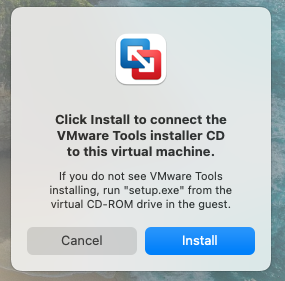
D 드라이브가 생성됨 > D:\VMware Tools\setup 실행 > PC 재시작
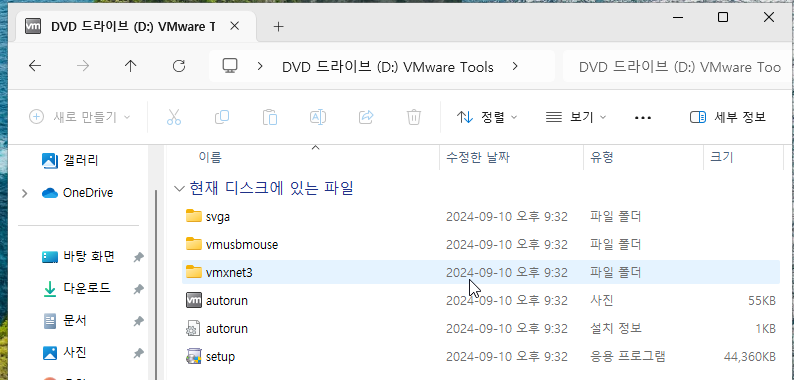

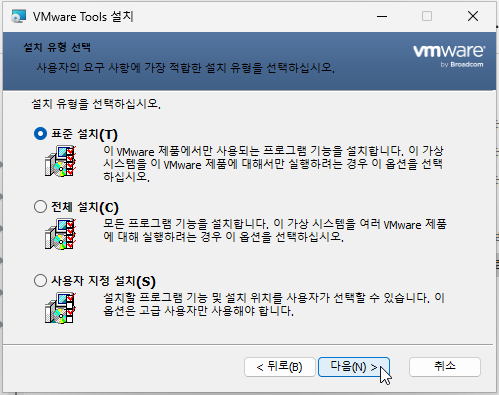
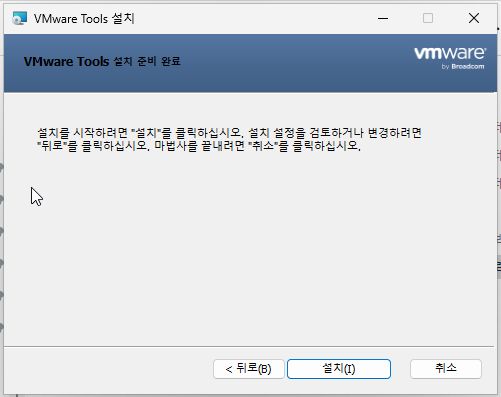
네트워크 설정 완료
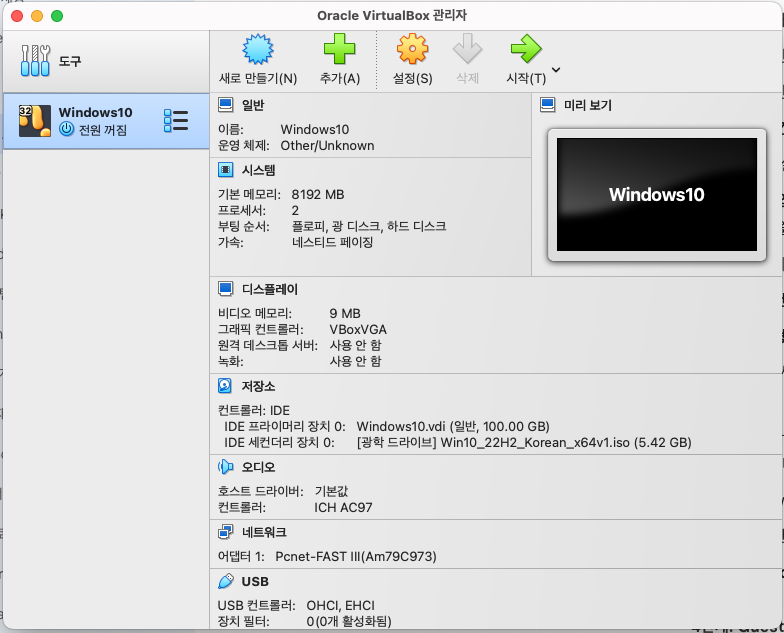
VirtualBox 환경 구성
VirtualBox 다운로드
https://www.virtualbox.org/wiki/Downloads
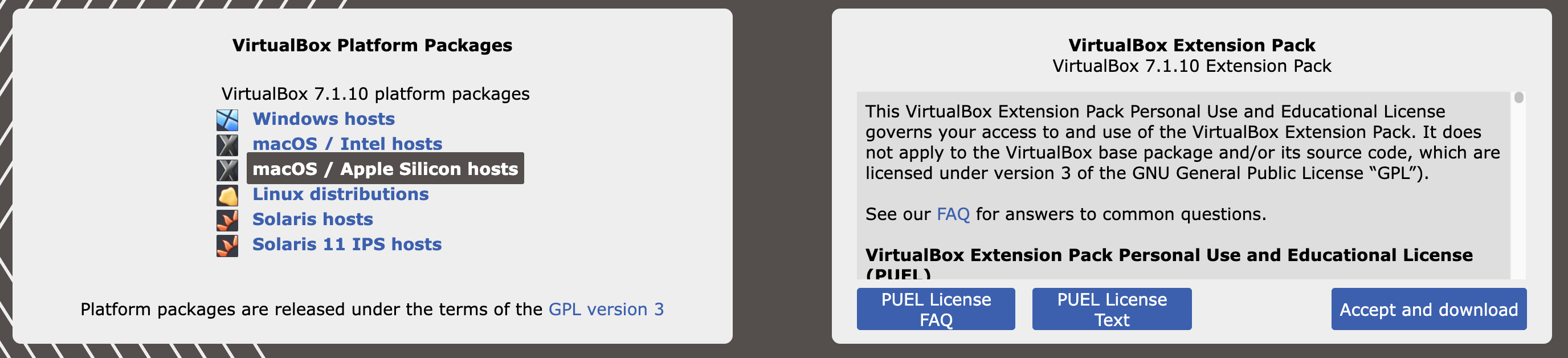
macOS / Apple Silicon hosts > M3 칩이기 때문에 silicon 선택Oracle VM VirtualBox Extension Pack: VirtualBox의 추가 기능을 위해 필요합니다 (USB 2.0/3.0 지원, 호스트 웹캠 지원 등)

VirtualBox 설치
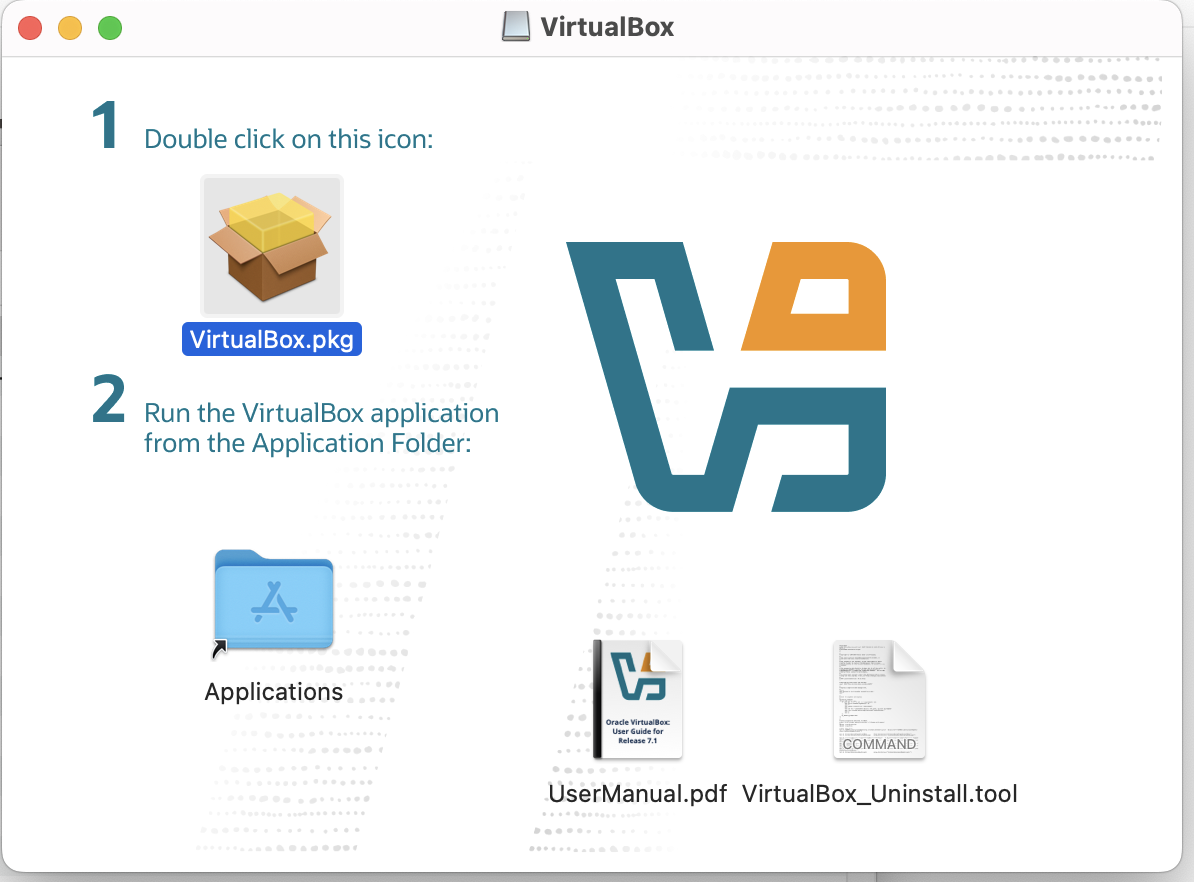
VirtualBox Extention Pack 설치
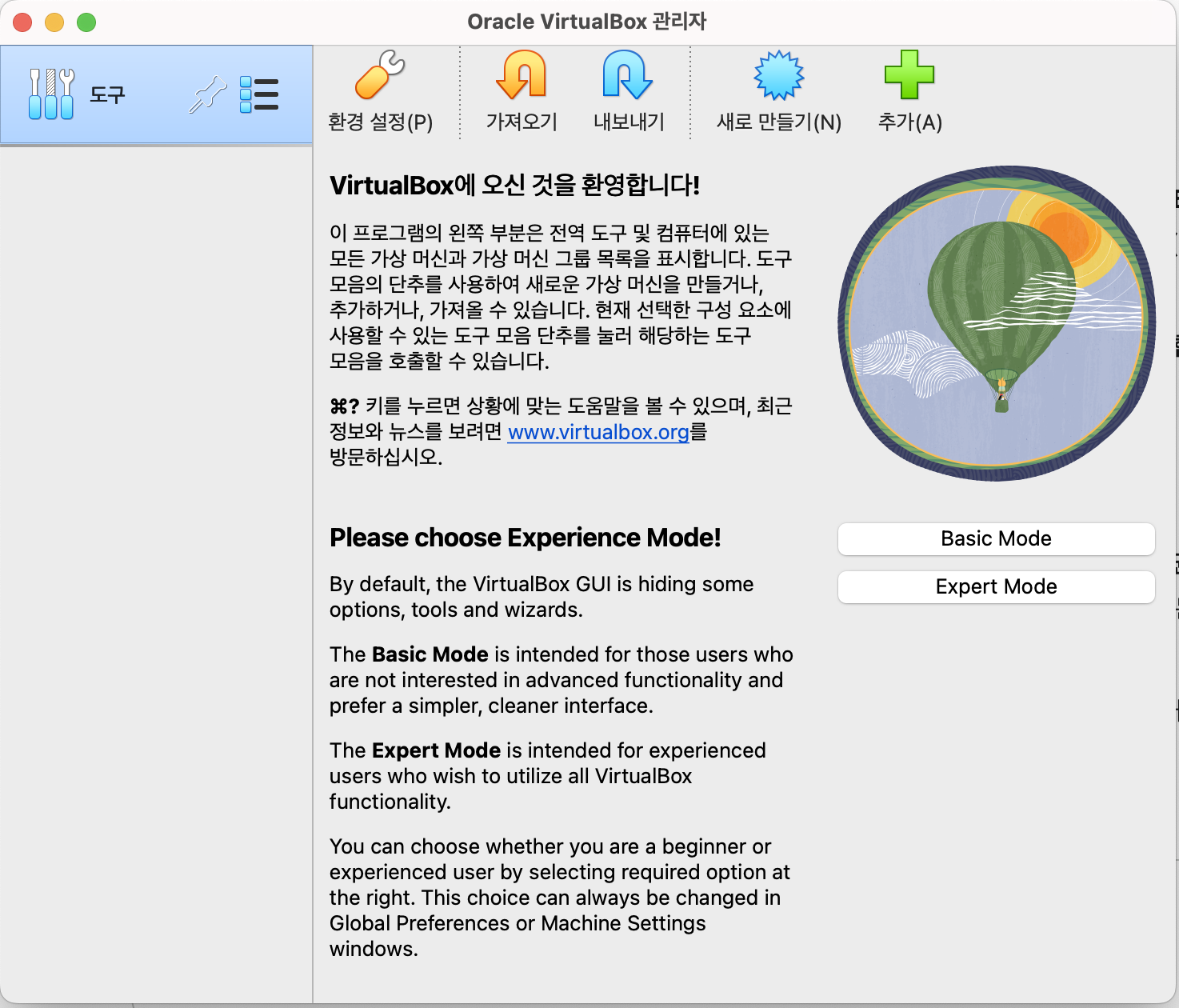
새로 만들기 > 설정

하드웨어 설정
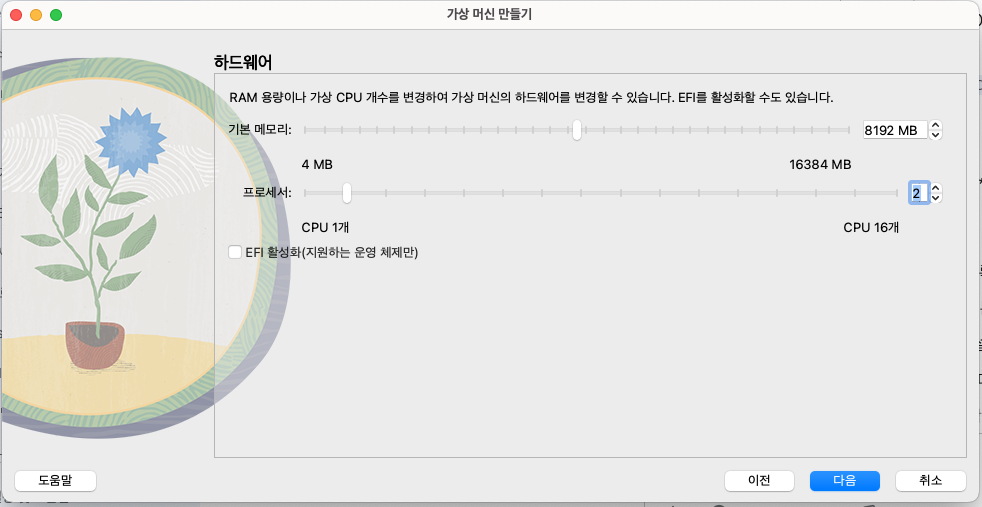
디스크 설정

요약
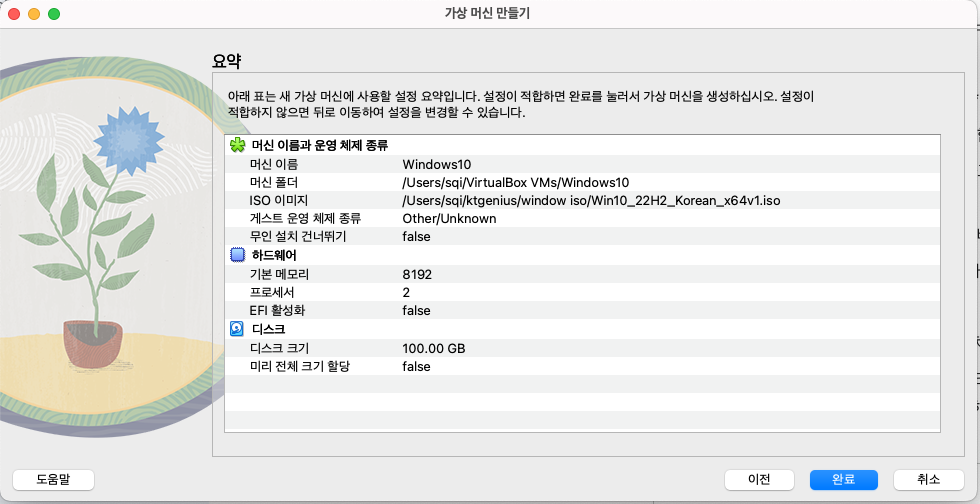
'Server' 카테고리의 다른 글
| ssh-rsa 활성화 (BapPublisherException) (0) | 2023.12.18 |
|---|---|
| Jenkins BapPublisherException (0) | 2023.11.30 |
| Linux 디스크 mount (1) | 2023.11.27 |
| Linux 디스크 mount 해제 (언마운트) (0) | 2023.11.10 |
| Tomcat war 파일명 변경 (0) | 2023.08.02 |


